Quick copy/paste
How do you type the shrug emoticon or emoji?
Using only the keyboard to enter a "shrug" emoji is actually more difficult than you might expect. Obviously, your keyboard does not have a dedicated key for the emoji (although an Apple Macbook with TouchBar™ comes close). How to type them then? The answer is by using unicode codepoints.
On macOS, the easiest way to type unicode characters is using the built-in "Character Viewer". To bring up the Character Viewer, press the ⌃ Ctrl+⌘ Cmd+space key combination.
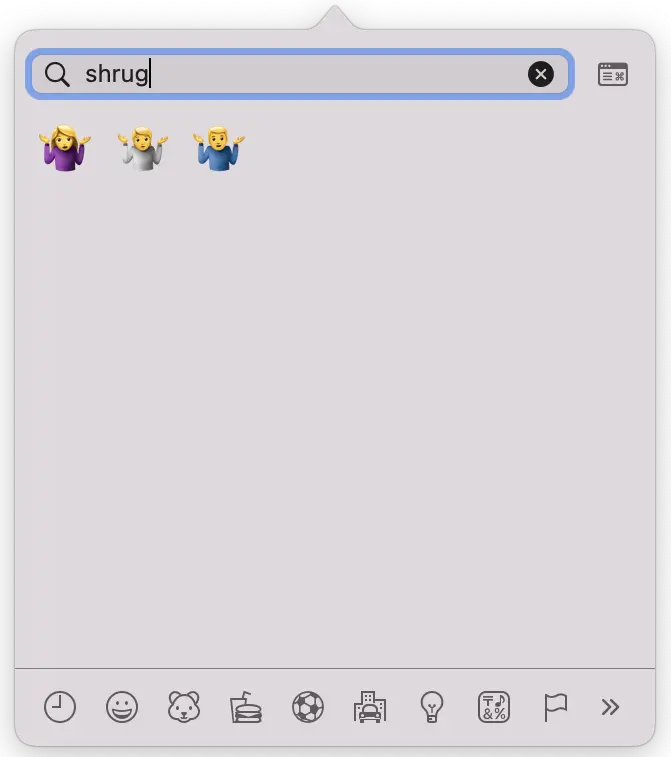
You can use the search box to find the "shrug" emojis. Use the arrow keys to navigate to the desired search result and press ↵ enter. That way, you don't need your mouse at all.
To type the emoticon (¯\_(ツ)_/¯), you will need to use the (japanese) katakana letter "tu": ツ. Additionally, the "upper hands" (¯) are what unicode calls the "macron" character (which is not on most keyboards).
In Apple's Character Viewer you can find the katakana tu and macron using either their name or their unicode codepoint:
| ツ | katakana tu | 30C4 |
| ¯ | macron | 00A4 |
Sounds cumbersome? Couldn't agree more. Read on for a lifehack to make things easier.
Lifehack: use autocorrect to type the shrug emoji
If you are on a Mac, iPhone or iPad, you can leverage the built-in autocorrect feature to simplify typing the shrug emoji or emoticon. The next sections show you how it's done. You will only need to set up the autocorrect once.
How to use autocorrect on a Mac to type the shrug emoji
On macOS, you can define a unique text that, when typed, is "autocorrected" and replaced with the shrug emoticon/emoji. To set this up, open "System Preferences".
You can use a spotlight search for this: press ⌘ Cmd+space and type system preferences to open it. Alternatively, open the menu and click "System preferences...".
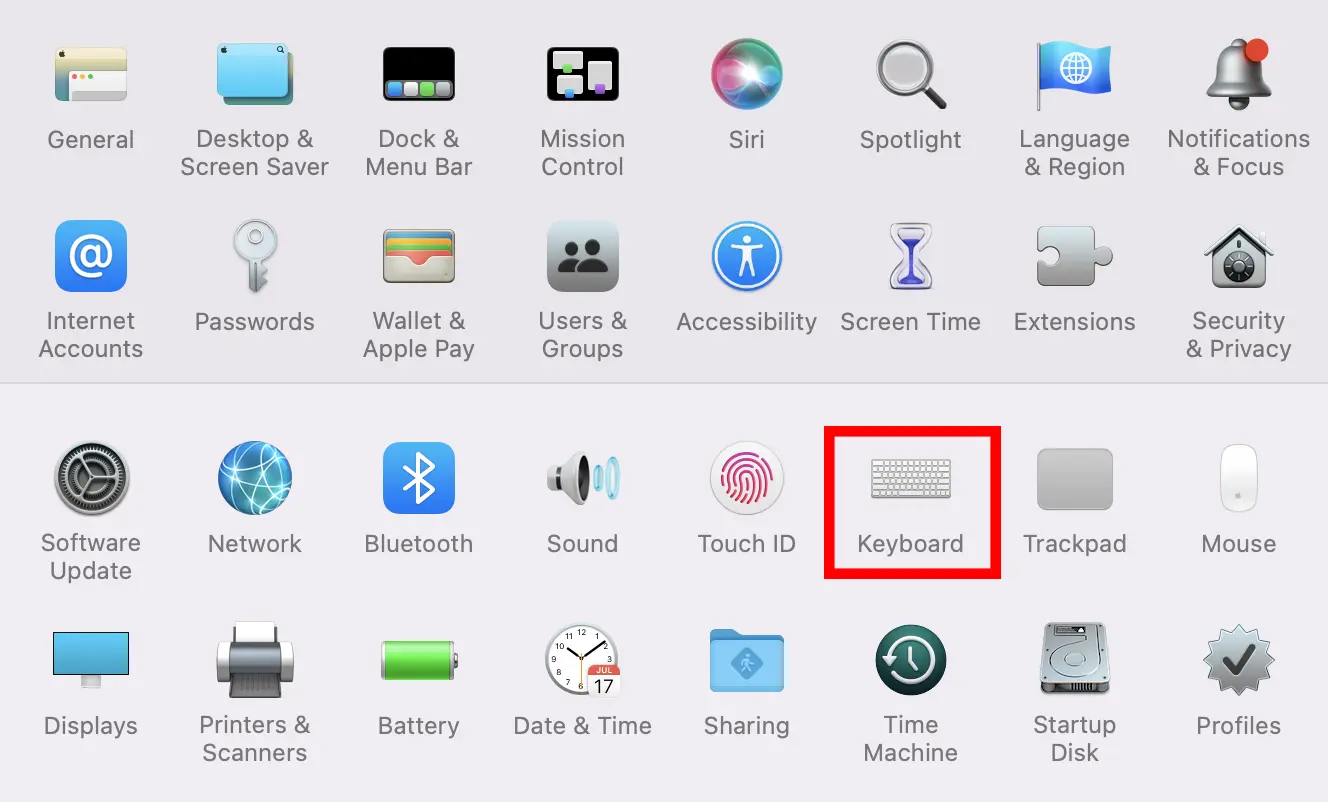
Click the "Keyboard" icon to go to the keyboard settings.
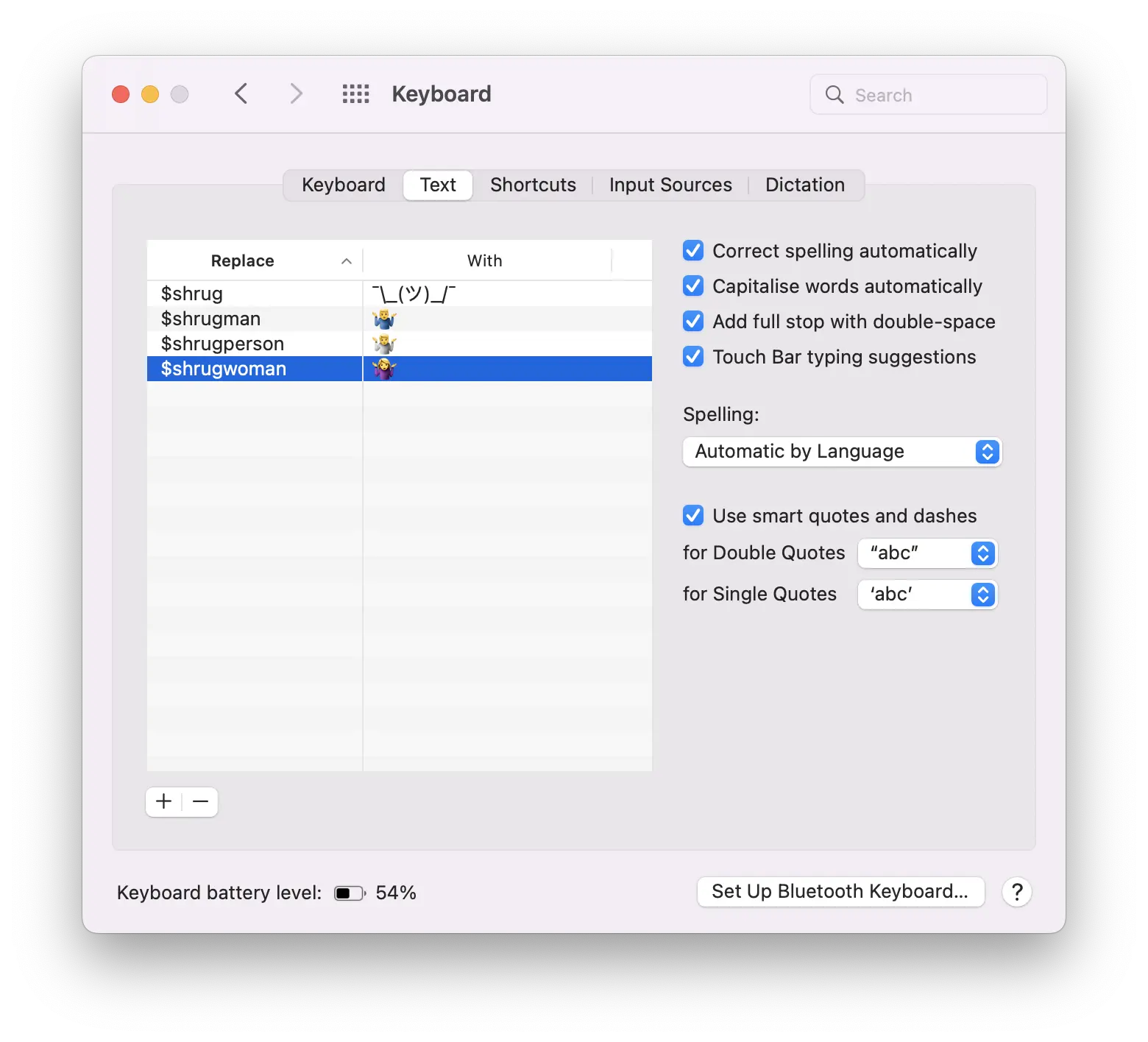
In the 'Text' tab you can now add automatic replacement texts to your liking. You can use the Copy! buttons above to copy/paste the replacement text into the 'With' column (or use the character viewer method).
The 'Replace' column value should be some text that is easy for you to remember and not something you are likely to type in a normal text. The example shows a '$' prefix, but you are free to pick what you want.
That's it! You're done!

To test, open a text editor and type your text:
How to use autocorrect on an iPhone/iPad to type the shrug emoji
If you own an iOS device (iPhone/iPad) and did the setup for you mac described above, you're done! The keyboard settings are automatically synchronized with your iOS device.
If you don't have a mac, or want to set it up manually, the process is similar. Go to system preferences and search for 'text replacement'.
About the shrug emoticon
Meaning
A shrug represents being indifferent about something or not knowing the answer to a question (wikipedia). It can also be interpreted as being skeptical about something.
Use of the shrug emoji or emoticon is a means to convey this typical body language in a textual manner.
History
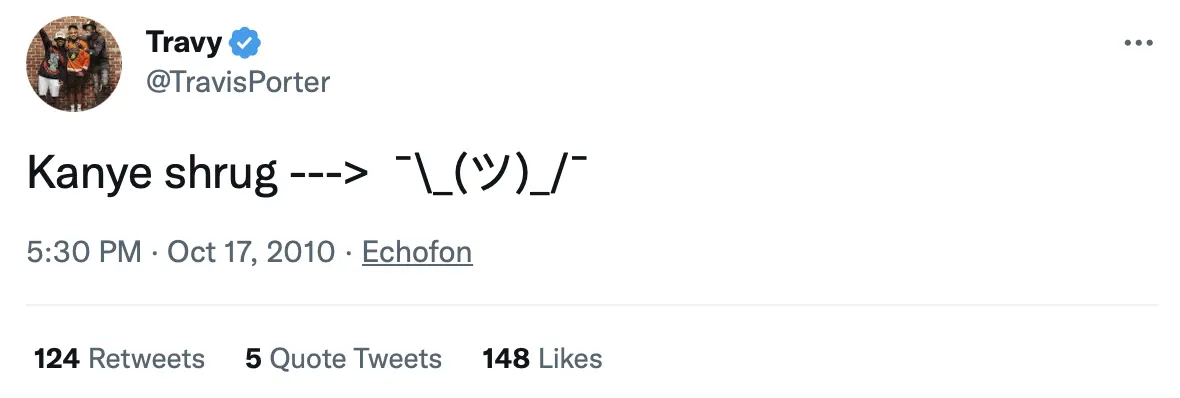
The ¯\_(ツ)_/¯ emoticon became popular when Kanye West interrupted Taylor Swift's 'Best Video' acceptance speech in favor of Beyoncé during the 2010 Video Music Awards. He shrugged his shoulders like in the emoticon to express his skepticism about what was going on (in his opinion, Beyoncés video was better). Travis Porter (of the rap group) then tweeted the shrug emoticon: